> ## Documentation Index
> Fetch the complete documentation index at: https://vobiz.ai/docs/llms.txt
> Use this file to discover all available pages before exploring further.
# Dograh integration
> Connect Vobiz telephony to a self-hosted Dograh instance to place and receive AI voice-agent calls - Docker setup, telephony config, and the bidirectional audio stream.
[Dograh](https://github.com/dograh-hq/dograh) is an open-source, self-hosted platform for building AI voice agents. Connecting it to Vobiz gives your agents real phone numbers and global calling through premium SIP trunking.
## What you'll build
A self-hosted Dograh instance that places and receives AI voice-agent calls over Vobiz - Dograh dials via the Vobiz REST API, Vobiz fetches a `` instruction, and audio streams bidirectionally over a WebSocket to your agent (STT → LLM → TTS).
## Prerequisites
* A **Vobiz account** with an **Auth ID** (e.g. `MA_XXXXXXXX`) and **Auth Token** - from the [Vobiz Console](https://console.vobiz.ai).
* At least one **Vobiz phone number** (your caller ID), in E.164 **without** the `+` (e.g. `91XXXXXXXXXX`).
* **Docker** + **Docker Compose** installed.
* A way for Vobiz's cloud to reach your server. For local dev, Dograh auto-creates a Cloudflare quick tunnel (see [Step 5](#step-5-make-dograh-reachable-from-vobiz)).
## Step 1: Run Dograh
```bash theme={null}
git clone https://github.com/dograh-hq/dograh.git
cd dograh
# Required secret for OSS auth (any strong random string)
echo "OSS_JWT_SECRET=$(openssl rand -hex 32)" > .env
REGISTRY=ghcr.io/dograh-hq ENABLE_TELEMETRY=false docker compose up -d --pull always
```
First boot pulls images (2–3 min). When healthy, open [http://localhost:3010](http://localhost:3010).
Health check: `curl http://localhost:8000/api/v1/health` should return `{"status":"ok", ...}`.
## Step 2: Create your account
Open [http://localhost:3010](http://localhost:3010), sign up (local auth - no email needed), and you're in the dashboard.
## Step 3: Get your Vobiz credentials
From the [Vobiz Console](https://console.vobiz.ai), copy:
* **Auth ID** (`MA_…`)
* **Auth Token**
* **(Optional) Application ID** - leave it blank and Dograh auto-creates one and stores it.
* Your **Vobiz number(s)** you'll call from.
## Step 4: Add Vobiz in Dograh
In the dashboard, go to **Telephony → Configure Telephony**.
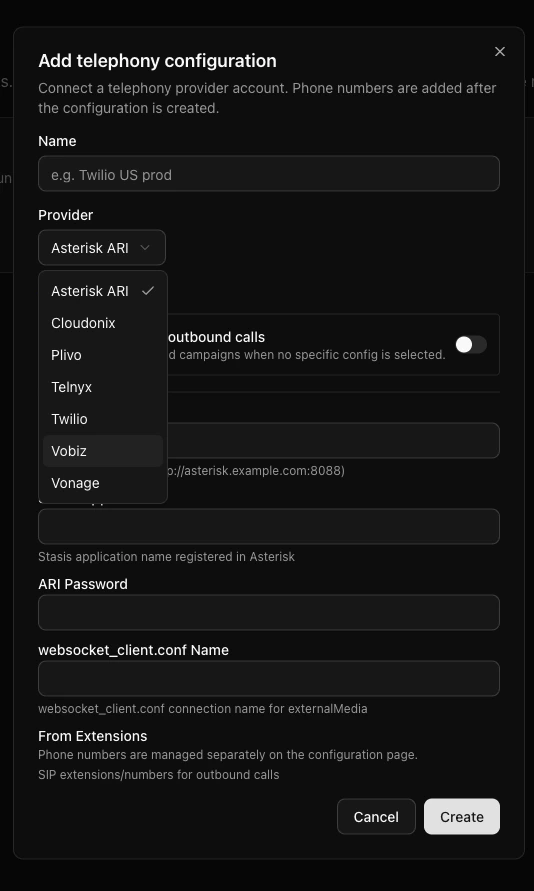
Select **Vobiz** as the provider.
Enter your credentials:
| Field | Value |
| ------------------ | ------------------------------------------------------------- |
| **Provider** | `vobiz` |
| **Auth ID** | `MA_XXXXXXXX` |
| **Auth Token** | your Vobiz auth token |
| **Application ID** | *(optional - auto-created if blank)* |
| **From numbers** | your Vobiz number(s), E.164 without `+` (e.g. `91XXXXXXXXXX`) |
Save, and set it as the **default outbound config** if prompted.
Dograh is now authorized to place and receive calls through your Vobiz account.
## Step 5: Make Dograh reachable from Vobiz
Vobiz's cloud calls back into Dograh for call control and audio:
| Endpoint | Purpose |
| ---------------------------------------------------------- | ----------------------------------- |
| `POST /api/v1/telephony/vobiz-xml` | Returns the `` instruction. |
| `POST /api/v1/telephony/vobiz/ring-callback/{run_id}` | Ring status. |
| `POST /api/v1/telephony/vobiz/hangup-callback/{run_id}` | Call ended. |
| `WS /api/v1/telephony/ws/{workflow_id}/{user_id}/{run_id}` | Bidirectional audio stream. |
For these to work, Dograh must be **publicly reachable**:
* **Local dev** - Dograh auto-starts a Cloudflare quick tunnel and uses it automatically (no setup). Check it in the health output's `backend_api_endpoint`.
* **Production** - deploy on a server with a real domain (HTTPS) and set `BACKEND_API_ENDPOINT=https://your-domain` so the callbacks and `wss://` stream use a stable, low-latency endpoint. See Dograh's Docker deployment guide for the remote profile (nginx + HTTPS).
## Step 6: Build an agent
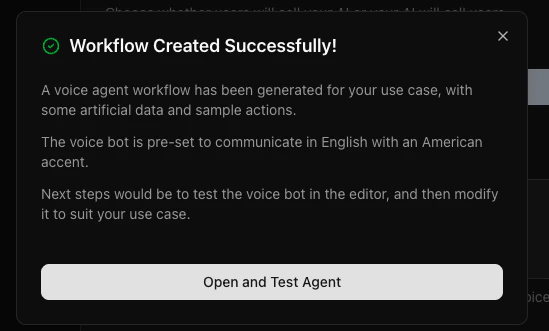
Go to **Create agent**, pick **Inbound** or **Outbound**, name it, and describe the use case in a sentence (e.g. *"Qualify inbound insurance leads"*). Dograh generates a workflow you can edit.
## Step 7: Place an outbound call
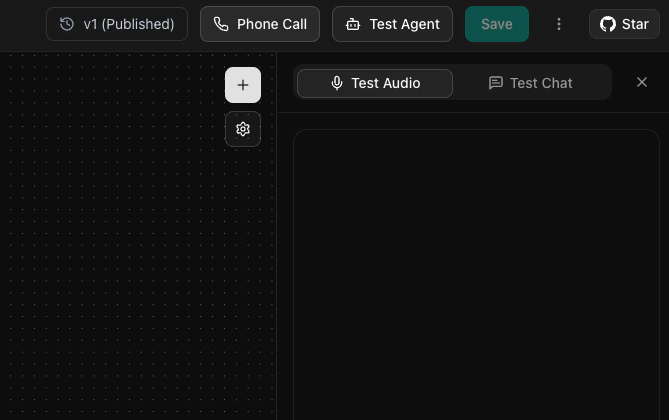
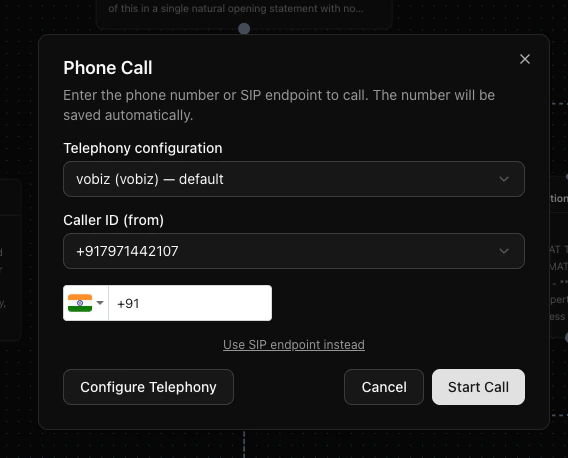
Open your agent and click **Call** (phone icon):
* **Telephony configuration:** `vobiz (vobiz)` - default
* **Caller ID (from):** your Vobiz number
* **To:** the destination number (E.164)
Click **Call**, pick up, and talk to your agent. Dograh dials via the Vobiz REST API, Vobiz fetches the `` XML, and audio streams over the WebSocket to your agent.
## Inbound calls *(optional)*
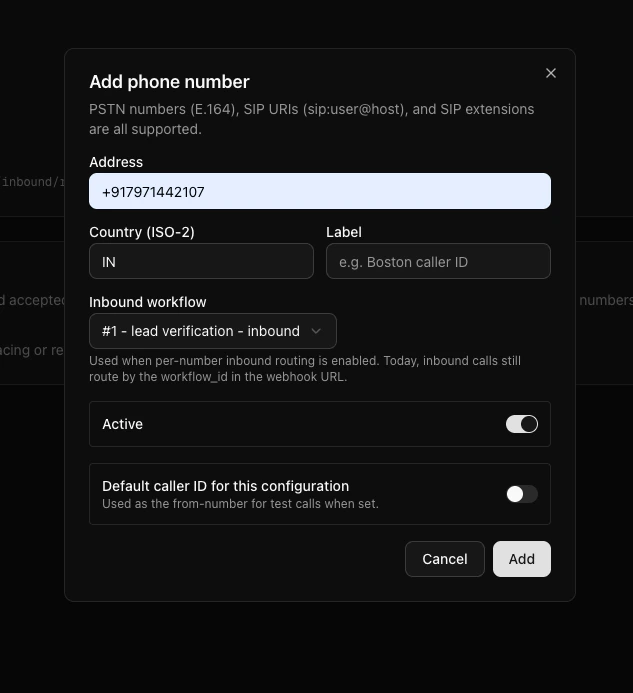
Attach a workflow to a Vobiz number on the account - Dograh updates that Vobiz application's `answer_url` so incoming calls route to the agent.
## How it works
```text theme={null}
Dograh REST dial → Vobiz places call → ring-callback → answered
→ Vobiz fetches /vobiz-xml
→
→ WebSocket opens → caller audio (media) ⇄ bot audio (playAudio)
→ hangup-callback on end
```
## Troubleshooting
Stale browser session after a re-clone or secret change. Clear site data for `localhost:3010`, or use an Incognito window.
Check your STT/LLM/TTS provider keys in **Settings** (if using the built-in hosted models, verify the account/key is active). Confirm `backend_api_endpoint` in the health output is a reachable public URL.
OpenAI returns 24 kHz audio; ensure it's resampled to the 8 kHz telephony rate. Configure the TTS at its native 24 kHz so the transport downsamples.
Turn-taking depends on the *bot-stopped-speaking* signal. Avoid a continuous output mixer on telephony.
Remap host ports via a `docker-compose.override.yaml` (e.g. postgres `5433`, redis `6380`, api `8001`).
## Resources
| Resource | Link |
| -------------------- | ------------------------------------------------------------------ |
| Dograh on GitHub | [github.com/dograh-hq/dograh](https://github.com/dograh-hq/dograh) |
| Vobiz `` XML | [Stream element](/xml/stream) |
| Vobiz support | [support@vobiz.ai](mailto:support@vobiz.ai) |
 [Dograh](https://github.com/dograh-hq/dograh) is an open-source, self-hosted platform for building AI voice agents. Connecting it to Vobiz gives your agents real phone numbers and global calling through premium SIP trunking.
## What you'll build
A self-hosted Dograh instance that places and receives AI voice-agent calls over Vobiz - Dograh dials via the Vobiz REST API, Vobiz fetches a `
[Dograh](https://github.com/dograh-hq/dograh) is an open-source, self-hosted platform for building AI voice agents. Connecting it to Vobiz gives your agents real phone numbers and global calling through premium SIP trunking.
## What you'll build
A self-hosted Dograh instance that places and receives AI voice-agent calls over Vobiz - Dograh dials via the Vobiz REST API, Vobiz fetches a `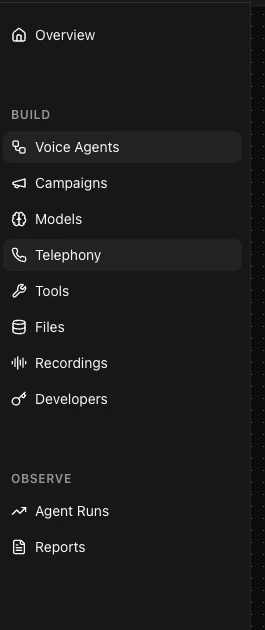 Select **Vobiz** as the provider.
 Enter your credentials:
| Field | Value |
| ------------------ | ------------------------------------------------------------- |
| **Provider** | `vobiz` |
| **Auth ID** | `MA_XXXXXXXX` |
| **Auth Token** | your Vobiz auth token |
| **Application ID** | *(optional - auto-created if blank)* |
| **From numbers** | your Vobiz number(s), E.164 without `+` (e.g. `91XXXXXXXXXX`) |
Enter your credentials:
| Field | Value |
| ------------------ | ------------------------------------------------------------- |
| **Provider** | `vobiz` |
| **Auth ID** | `MA_XXXXXXXX` |
| **Auth Token** | your Vobiz auth token |
| **Application ID** | *(optional - auto-created if blank)* |
| **From numbers** | your Vobiz number(s), E.164 without `+` (e.g. `91XXXXXXXXXX`) |
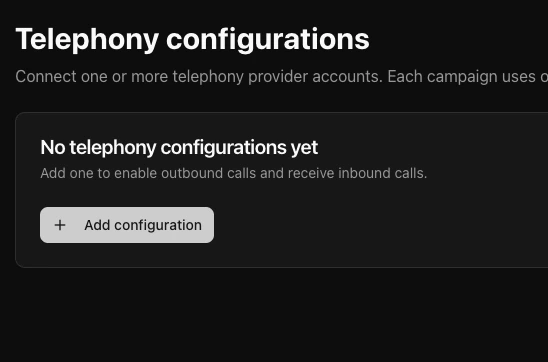 Save, and set it as the **default outbound config** if prompted.
 ## Step 7: Place an outbound call
Open your agent and click **Call** (phone icon):
## Step 7: Place an outbound call
Open your agent and click **Call** (phone icon):
 * **Telephony configuration:** `vobiz (vobiz)` - default
* **Caller ID (from):** your Vobiz number
* **To:** the destination number (E.164)
Click **Call**, pick up, and talk to your agent. Dograh dials via the Vobiz REST API, Vobiz fetches the `
* **Telephony configuration:** `vobiz (vobiz)` - default
* **Caller ID (from):** your Vobiz number
* **To:** the destination number (E.164)
Click **Call**, pick up, and talk to your agent. Dograh dials via the Vobiz REST API, Vobiz fetches the `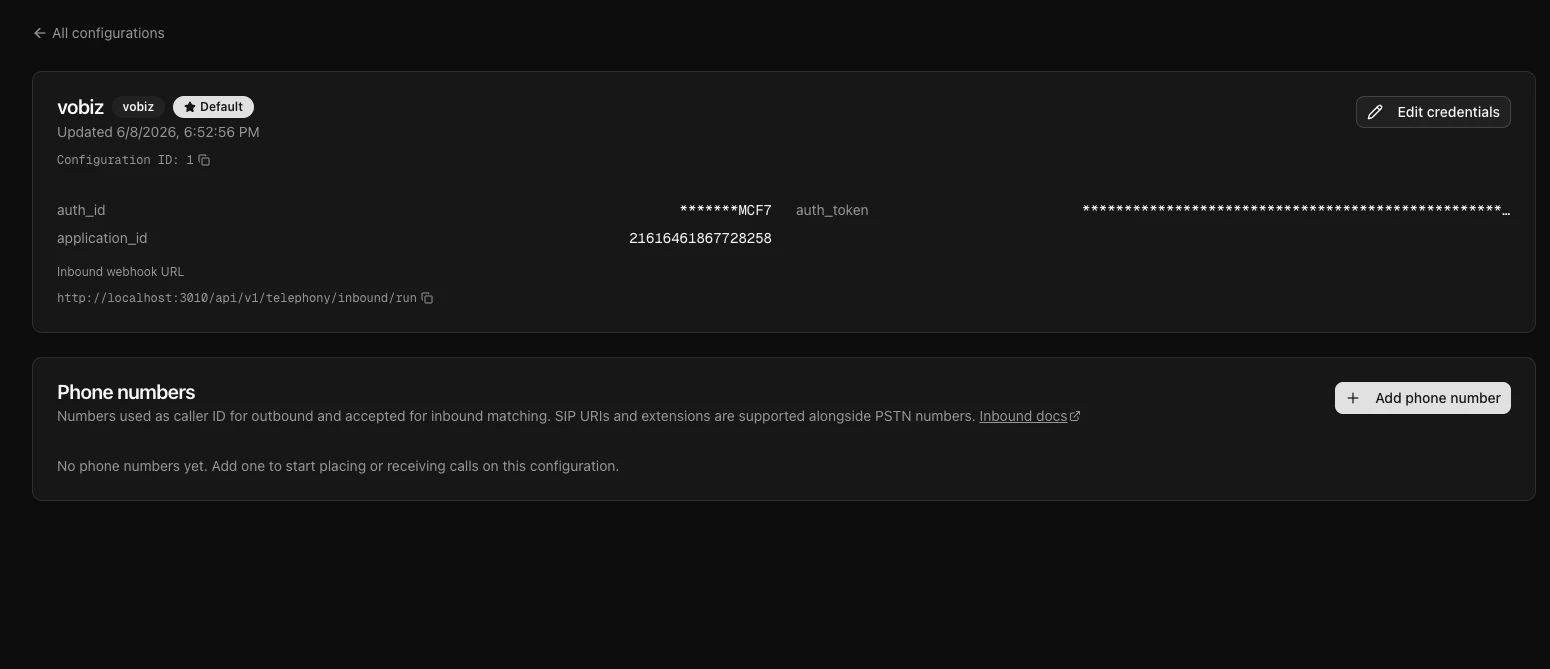
 ## How it works
```text theme={null}
Dograh REST dial → Vobiz places call → ring-callback → answered
→ Vobiz fetches /vobiz-xml
→
## How it works
```text theme={null}
Dograh REST dial → Vobiz places call → ring-callback → answered
→ Vobiz fetches /vobiz-xml
→