> ## Documentation Index
> Fetch the complete documentation index at: https://vobiz.ai/docs/llms.txt
> Use this file to discover all available pages before exploring further.
# Rapida AI integration
> Connect an open-source Rapida AI deployment to Vobiz for inbound and outbound AI phone calls using Vobiz applications, the REST API, and bidirectional WebSocket audio streaming.
 Rapida AI is an open-source platform for building and deploying AI assistants. Its Vobiz provider creates outbound calls through the Vobiz REST API, routes inbound calls through a Vobiz XML Application, and carries live call audio over a bidirectional Vobiz WebSocket stream.
This guide connects your Vobiz account, selects a Vobiz phone number for an assistant, and configures outbound and inbound calling.
Rapida AI can run on different domains because it is open source. In this guide, `` means the base URL of your own Rapida AI deployment.
## How the integration works
```text theme={null}
Outbound: Rapida AI → Vobiz REST API → callee
Inbound: Caller → Vobiz number → XML Application → Rapida AI Answer URL
↓
Rapida AI agent ⇄ bidirectional WebSocket audio ⇄ Vobiz
```
This is a **Vobiz WebSocket integration**, not a SIP trunk configuration. Rapida AI handles outbound call creation and the streaming connection after you save your Vobiz account credentials. For inbound calls, you also route a Vobiz XML Application to the Rapida AI webhook.
## Prerequisites
* Access to a Rapida AI deployment and permission to configure integrations.
* A Vobiz account with an **Auth ID** and **Auth Token**.
* An active Vobiz phone number to use as the outbound caller ID or inbound DID.
* Sufficient Vobiz account balance to place the test call.
* A Rapida AI assistant configured with its model, speech-to-text, and text-to-speech providers.
You can copy your Auth ID and Auth Token from the **API Credentials** section of the [Vobiz dashboard](https://console.vobiz.ai/app/dashboard).
Treat your Vobiz Auth Token as a secret. Do not place it in source code, documentation screenshots, or client-side applications.
## Configure Vobiz in Rapida AI
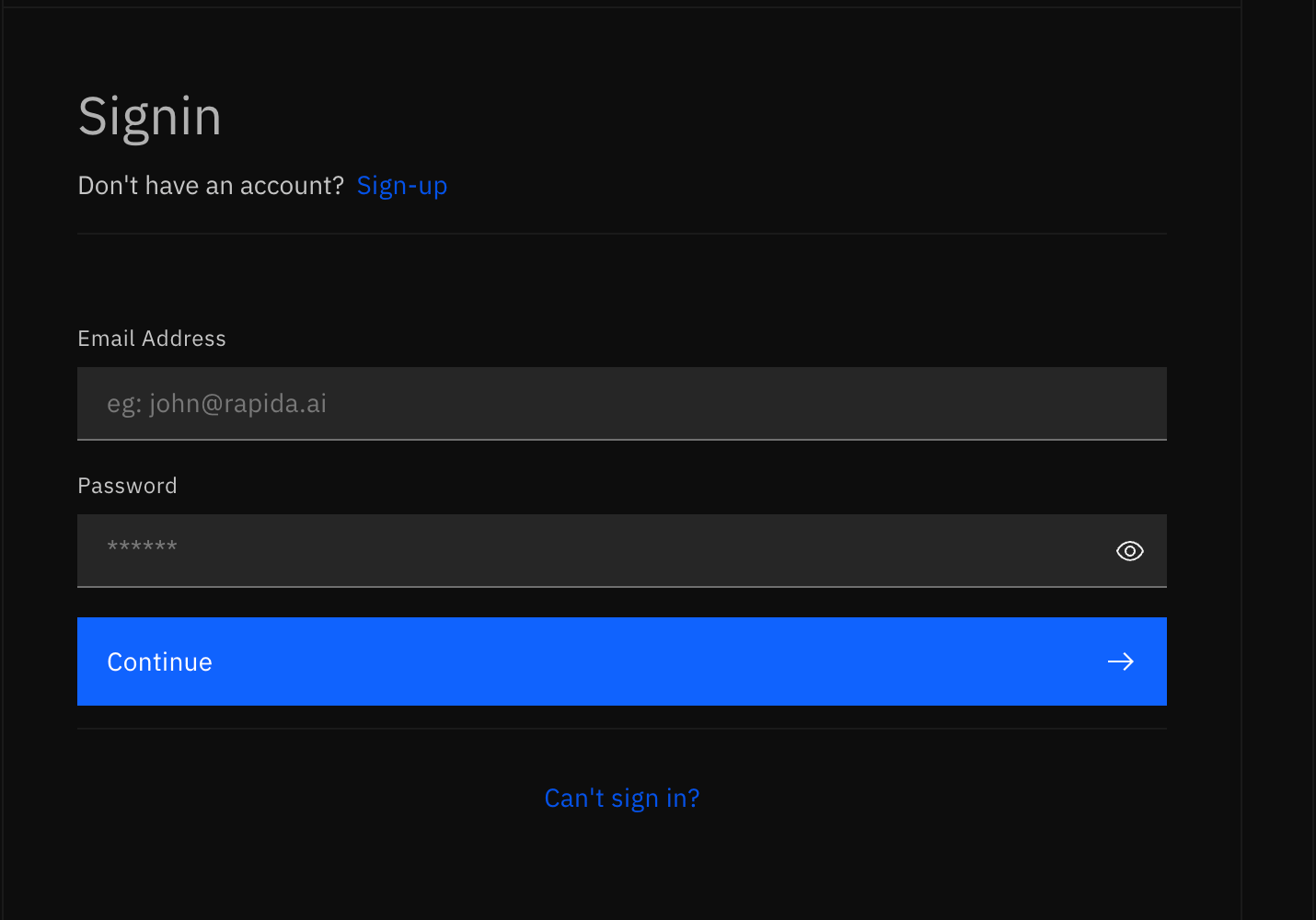
Open the sign-in page for your Rapida AI instance. If you do not have an account on that instance, click **Sign-up**, create your account, and then sign in.
Rapida AI is an open-source platform for building and deploying AI assistants. Its Vobiz provider creates outbound calls through the Vobiz REST API, routes inbound calls through a Vobiz XML Application, and carries live call audio over a bidirectional Vobiz WebSocket stream.
This guide connects your Vobiz account, selects a Vobiz phone number for an assistant, and configures outbound and inbound calling.
Rapida AI can run on different domains because it is open source. In this guide, `` means the base URL of your own Rapida AI deployment.
## How the integration works
```text theme={null}
Outbound: Rapida AI → Vobiz REST API → callee
Inbound: Caller → Vobiz number → XML Application → Rapida AI Answer URL
↓
Rapida AI agent ⇄ bidirectional WebSocket audio ⇄ Vobiz
```
This is a **Vobiz WebSocket integration**, not a SIP trunk configuration. Rapida AI handles outbound call creation and the streaming connection after you save your Vobiz account credentials. For inbound calls, you also route a Vobiz XML Application to the Rapida AI webhook.
## Prerequisites
* Access to a Rapida AI deployment and permission to configure integrations.
* A Vobiz account with an **Auth ID** and **Auth Token**.
* An active Vobiz phone number to use as the outbound caller ID or inbound DID.
* Sufficient Vobiz account balance to place the test call.
* A Rapida AI assistant configured with its model, speech-to-text, and text-to-speech providers.
You can copy your Auth ID and Auth Token from the **API Credentials** section of the [Vobiz dashboard](https://console.vobiz.ai/app/dashboard).
Treat your Vobiz Auth Token as a secret. Do not place it in source code, documentation screenshots, or client-side applications.
## Configure Vobiz in Rapida AI
Open the sign-in page for your Rapida AI instance. If you do not have an account on that instance, click **Sign-up**, create your account, and then sign in.
 In the same Rapida AI deployment, open:
```text theme={null}
/integration/models
```
Use your own deployment domain. Do not copy another user's complete Rapida AI URL.
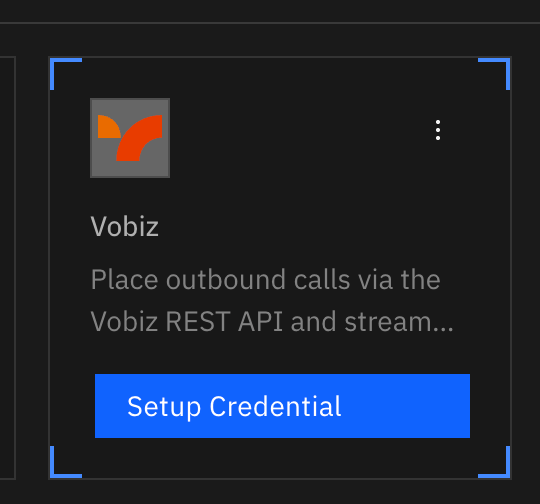
Find the **Vobiz** provider card and click **Setup Credential**.
In the same Rapida AI deployment, open:
```text theme={null}
/integration/models
```
Use your own deployment domain. Do not copy another user's complete Rapida AI URL.
Find the **Vobiz** provider card and click **Setup Credential**.
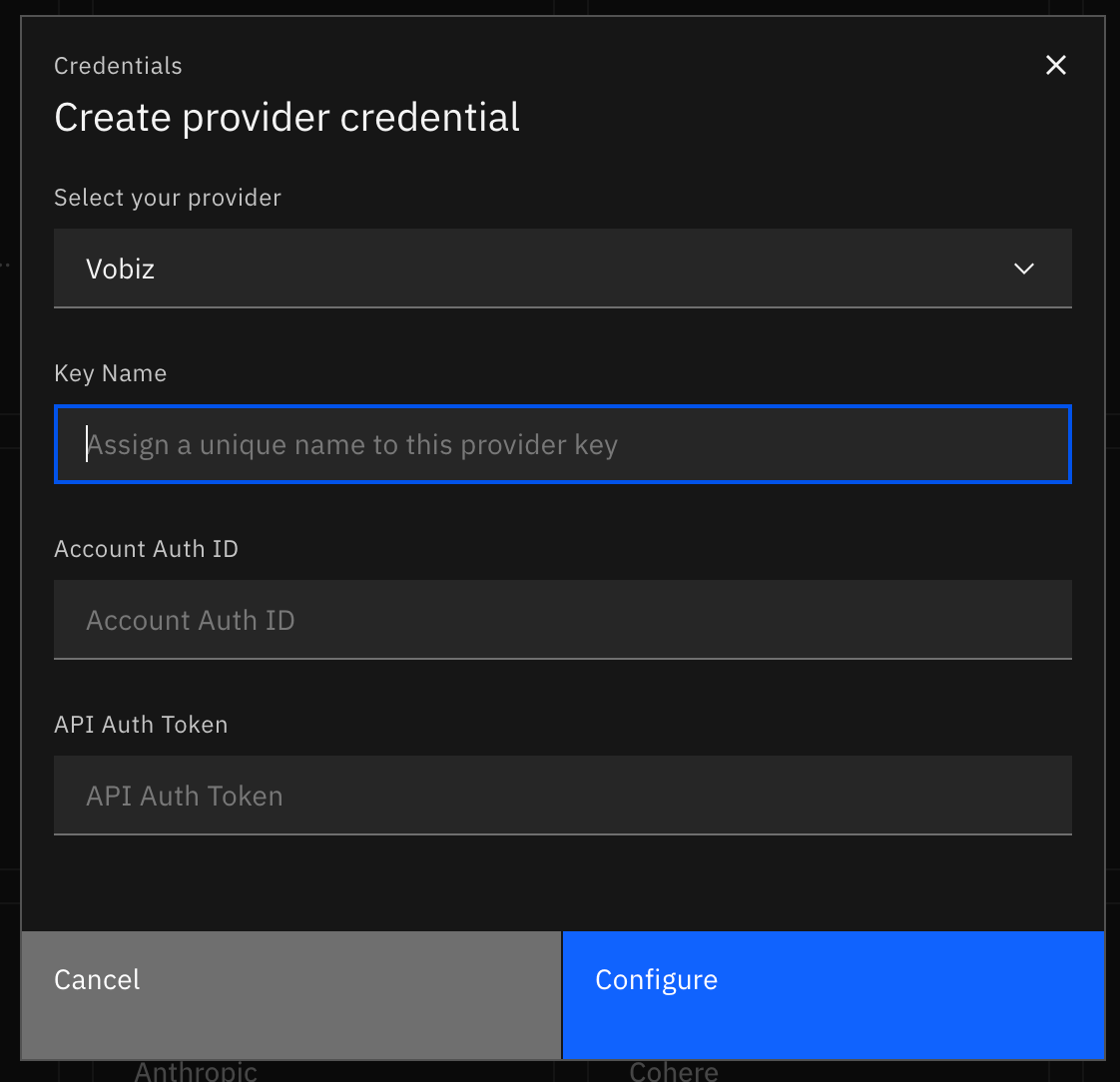
 Complete the credential form:
| Field | Value |
| ------------------------ | -------------------------------------------------------------- |
| **Select your provider** | `Vobiz` |
| **Key Name** | A unique label for this credential, such as `Vobiz production` |
| **Account Auth ID** | Your Vobiz Auth ID |
| **API Auth Token** | Your Vobiz Auth Token |
Click **Configure**.
Complete the credential form:
| Field | Value |
| ------------------------ | -------------------------------------------------------------- |
| **Select your provider** | `Vobiz` |
| **Key Name** | A unique label for this credential, such as `Vobiz production` |
| **Account Auth ID** | Your Vobiz Auth ID |
| **API Auth Token** | Your Vobiz Auth Token |
Click **Configure**.
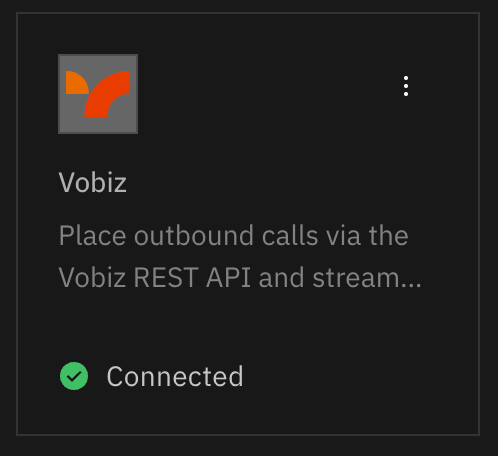
 The Vobiz provider card displays a green check and **Connected** after Rapida AI saves and verifies the credential.
 ## Add Vobiz telephony to an assistant
Open your assistant, then go to **Deployment → Add Phone Call**.
In **Step 1: Telephony**, select:
| Setting | Value |
| --------------------------- | -------------------------------------------------- |
| **Telephony provider** | `Vobiz` |
| **Credential** | The Vobiz credential you configured above |
| **Caller ID (from number)** | An active phone number from the same Vobiz account |
Use the refresh control next to **Credential** if a newly added credential or phone number does not appear immediately. Then click **Next** and complete the remaining assistant deployment steps.
## Add Vobiz telephony to an assistant
Open your assistant, then go to **Deployment → Add Phone Call**.
In **Step 1: Telephony**, select:
| Setting | Value |
| --------------------------- | -------------------------------------------------- |
| **Telephony provider** | `Vobiz` |
| **Credential** | The Vobiz credential you configured above |
| **Caller ID (from number)** | An active phone number from the same Vobiz account |
Use the refresh control next to **Credential** if a newly added credential or phone number does not appear immediately. Then click **Next** and complete the remaining assistant deployment steps.
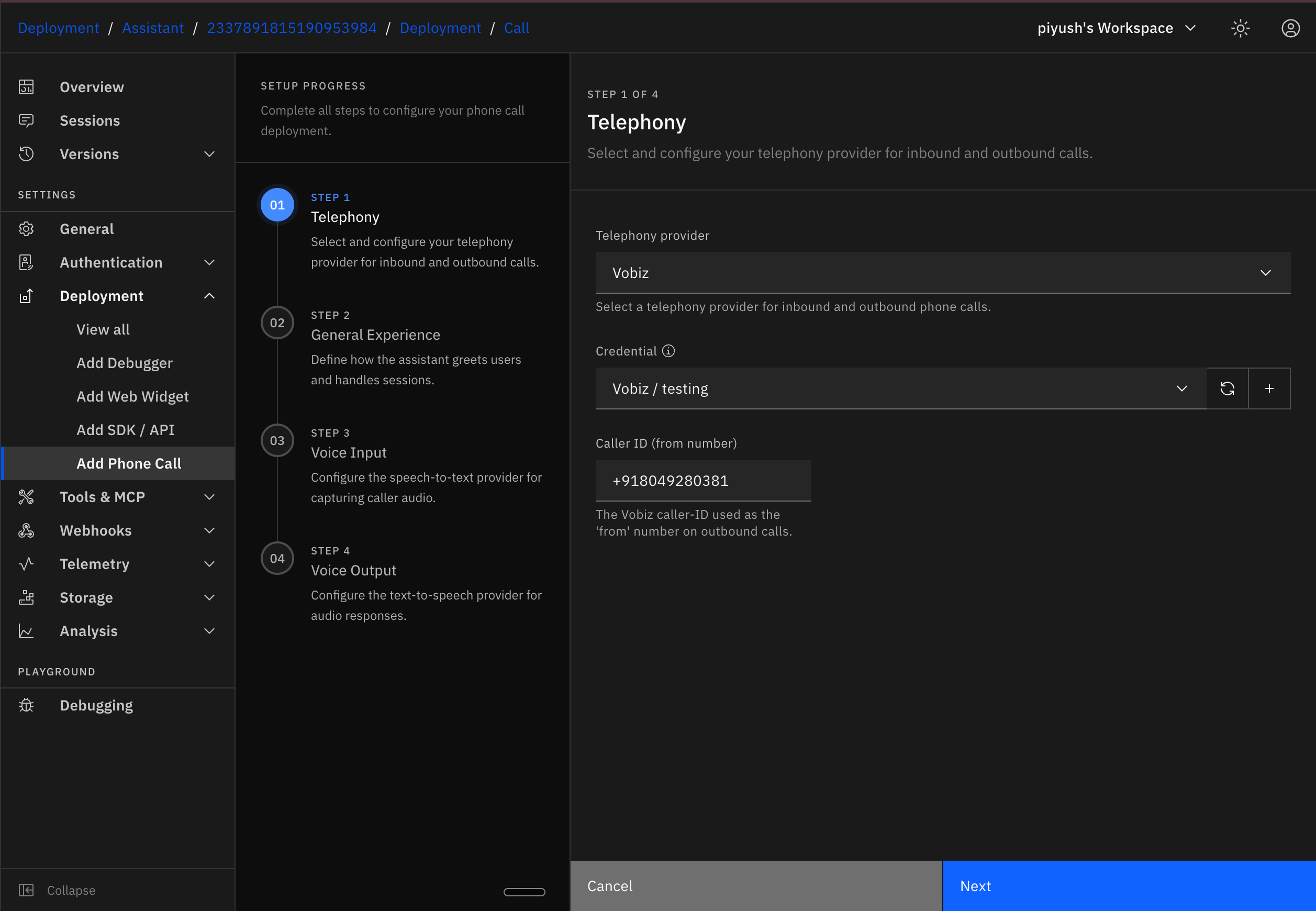 The caller ID must be a phone number available in the Vobiz account connected by the selected credential. Use the international E.164 format, such as `+919876543210`.
## Place an outbound test call
Open the assistant's phone preview or debug phone-call view. Confirm that the configuration panel shows `vobiz` as the telephony provider.
The caller ID must be a phone number available in the Vobiz account connected by the selected credential. Use the international E.164 format, such as `+919876543210`.
## Place an outbound test call
Open the assistant's phone preview or debug phone-call view. Confirm that the configuration panel shows `vobiz` as the telephony provider.
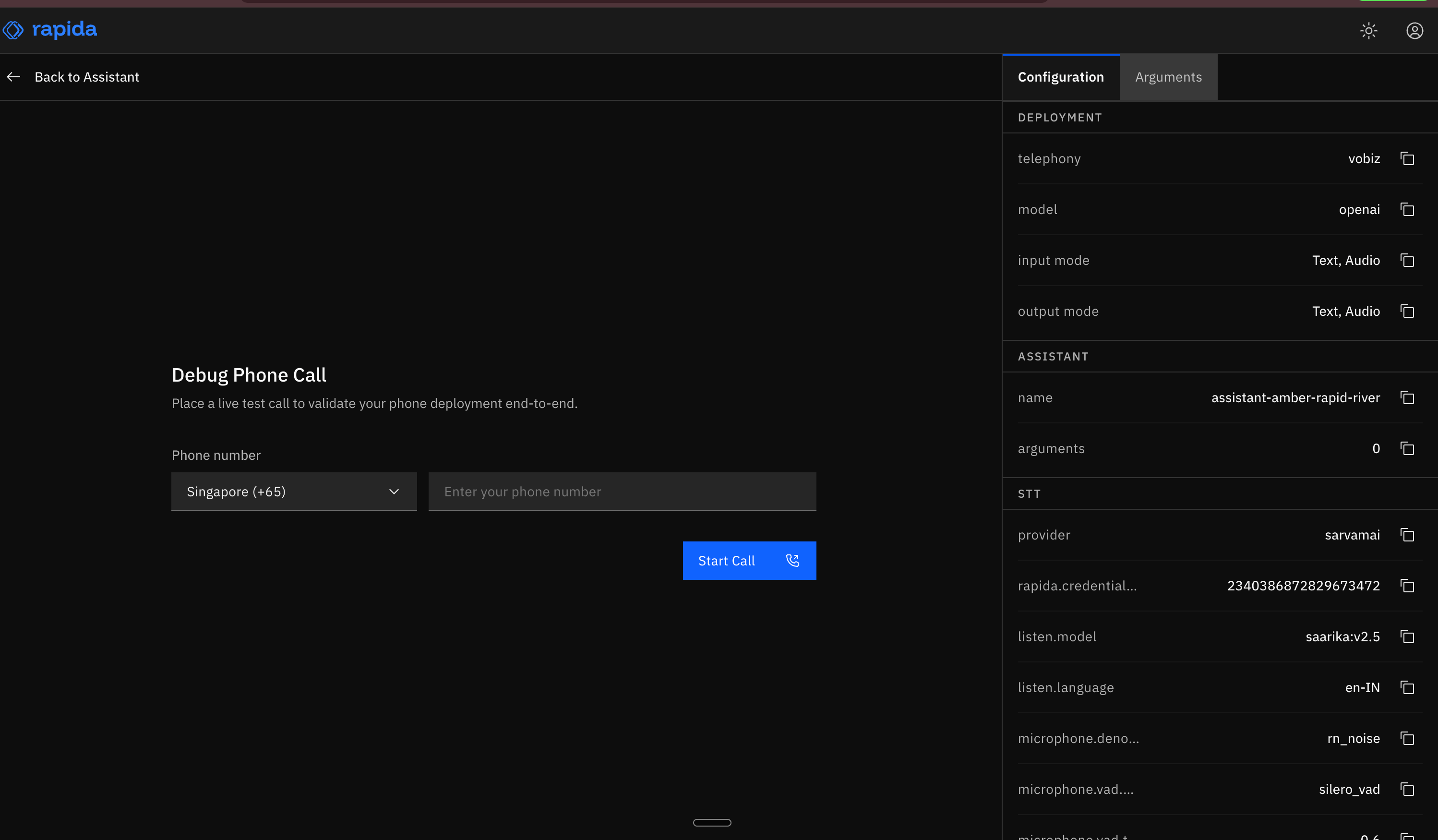 Select the destination country, enter the phone number, and click **Start Call**. Rapida AI asks Vobiz to create the outbound call and connects the assistant through the Vobiz WebSocket audio stream when the call is answered.
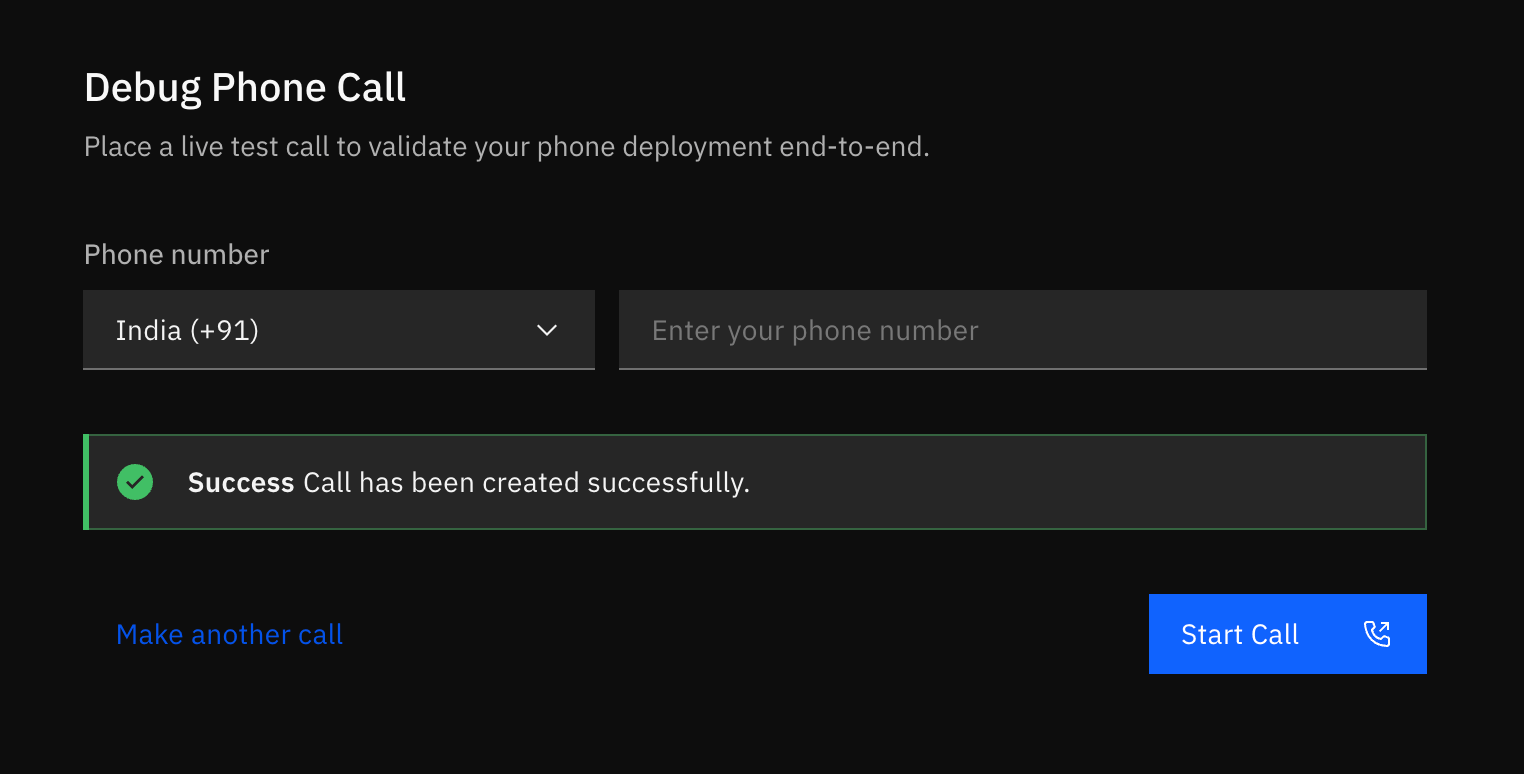
A green success message confirms that the call was created. Answer the destination phone and speak with the assistant to verify the complete audio path.
Select the destination country, enter the phone number, and click **Start Call**. Rapida AI asks Vobiz to create the outbound call and connects the assistant through the Vobiz WebSocket audio stream when the call is answered.
A green success message confirms that the call was created. Answer the destination phone and speak with the assistant to verify the complete audio path.
 Your Rapida AI assistant can now place outbound calls using a Vobiz phone number and exchange live audio over the Vobiz WebSocket stream.
## Receive inbound calls
For inbound calling, attach a Vobiz phone number to an XML Application whose Answer URL points to the Rapida AI phone deployment.
In Rapida AI, open your assistant and go to **Deployment → View all**. Select the phone deployment, open the **Integration** tab, and copy the complete **Inbound Webhook URL**.
Your Rapida AI assistant can now place outbound calls using a Vobiz phone number and exchange live audio over the Vobiz WebSocket stream.
## Receive inbound calls
For inbound calling, attach a Vobiz phone number to an XML Application whose Answer URL points to the Rapida AI phone deployment.
In Rapida AI, open your assistant and go to **Deployment → View all**. Select the phone deployment, open the **Integration** tab, and copy the complete **Inbound Webhook URL**.
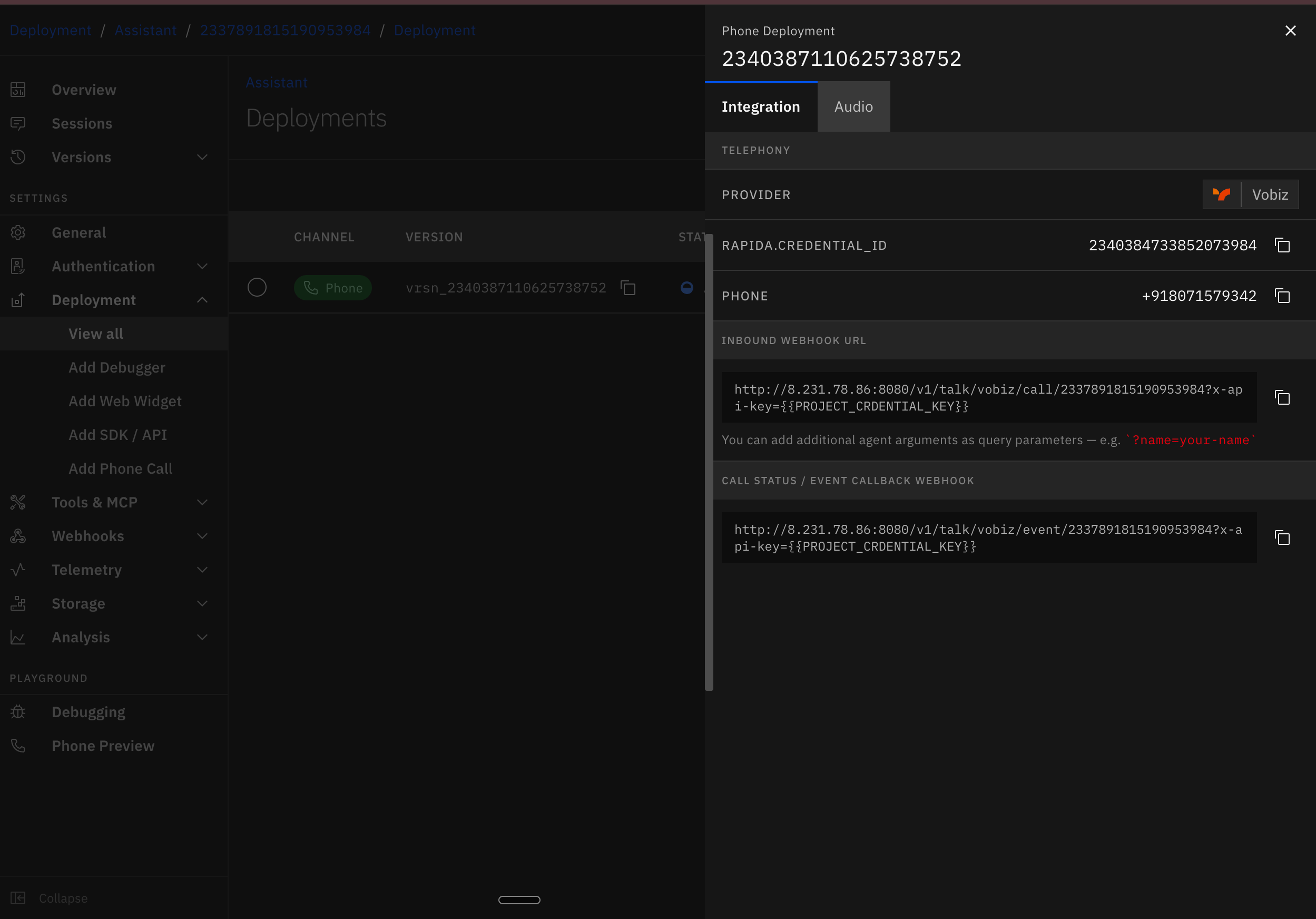 The generated URL follows this pattern:
```text theme={null}
/v1/talk/vobiz/call/?x-api-key=
```
Copy the URL from Rapida AI instead of constructing it manually. It contains the assistant identifier and project credential required by your deployment.
Open [Voice Applications in the Vobiz Console](https://console.vobiz.ai/app/voice/applications) and click **Create XML Application**. Configure these fields:
| Field | Value |
| -------------------- | ---------------------------------------------------------- |
| **Application Name** | A recognizable name, such as `Rapida AI inbound` |
| **Answer URL** | The complete **Inbound Webhook URL** copied from Rapida AI |
| **Answer method** | `GET` |
If you want Rapida AI to receive call status and completion events, copy the **Call Status / Event Callback Webhook** from the same Rapida AI deployment panel into **Hangup URL** and keep its method set to `POST`.
Leave **Default Number App**, **Public URI**, and **Default Endpoint App** disabled when you plan to attach a specific number in the next step. Then click **Create Application**.
The Rapida AI Answer URL contains an `x-api-key` query parameter. Treat the complete URL as a secret. Do not publish it in screenshots, tickets, logs, or source code.
Open the XML Application you created. In **Attach Number**, select the Vobiz phone number that callers should dial and save the change.
Attaching the number routes its inbound calls to the application's Rapida AI Answer URL. For the API equivalent, see [Attach a number to an application](/applications/attach-number).
Call the attached Vobiz number from another phone. Vobiz requests the Rapida AI Answer URL, Rapida AI returns the call instructions, and Vobiz opens the bidirectional WebSocket audio stream to the assistant.
Answer and audio behavior depend on the model, speech-to-text, and text-to-speech settings saved in the Rapida AI phone deployment.
The attached Vobiz number now routes inbound calls to your Rapida AI assistant.
## Troubleshooting
| Issue | What to check |
| ----------------------------------------------------- | ---------------------------------------------------------------------------------------------------------------------------------------------------------------------------------------- |
| Vobiz does not show **Connected** | Re-enter the Auth ID and Auth Token from the Vobiz dashboard. Confirm that no leading or trailing spaces were copied. |
| The credential or phone number is missing | Click the refresh control. Confirm that the caller ID belongs to the same Vobiz account as the selected credential. |
| The call is not created | Check the destination country and number, your Vobiz balance, and whether the selected caller ID is active. |
| The call connects without agent audio | Confirm that the assistant's model, speech-to-text, and text-to-speech providers are configured. The Vobiz provider uses WebSocket streaming, so no SIP trunk is required for this flow. |
| Inbound calls do not reach Rapida AI | Confirm that the number is attached to the correct XML Application and that its Answer URL exactly matches the Rapida AI **Inbound Webhook URL**. |
| The inbound Answer URL returns an authorization error | Copy the full webhook URL again from Rapida AI. Do not remove or modify its `x-api-key` query parameter. |
## Related resources
| Resource | Link |
| ------------------------- | ---------------------------------------------------------- |
| Vobiz WebSocket streaming | [Streaming WebSockets](/concepts/streaming-websockets) |
| Vobiz Stream XML | [Stream element](/xml/stream) |
| Vobiz phone numbers | [Phone numbers](/account-phone-number) |
| Vobiz dashboard | [console.vobiz.ai](https://console.vobiz.ai/app/dashboard) |
| Vobiz support | [support@vobiz.ai](mailto:support@vobiz.ai) |
The generated URL follows this pattern:
```text theme={null}
/v1/talk/vobiz/call/?x-api-key=
```
Copy the URL from Rapida AI instead of constructing it manually. It contains the assistant identifier and project credential required by your deployment.
Open [Voice Applications in the Vobiz Console](https://console.vobiz.ai/app/voice/applications) and click **Create XML Application**. Configure these fields:
| Field | Value |
| -------------------- | ---------------------------------------------------------- |
| **Application Name** | A recognizable name, such as `Rapida AI inbound` |
| **Answer URL** | The complete **Inbound Webhook URL** copied from Rapida AI |
| **Answer method** | `GET` |
If you want Rapida AI to receive call status and completion events, copy the **Call Status / Event Callback Webhook** from the same Rapida AI deployment panel into **Hangup URL** and keep its method set to `POST`.
Leave **Default Number App**, **Public URI**, and **Default Endpoint App** disabled when you plan to attach a specific number in the next step. Then click **Create Application**.
The Rapida AI Answer URL contains an `x-api-key` query parameter. Treat the complete URL as a secret. Do not publish it in screenshots, tickets, logs, or source code.
Open the XML Application you created. In **Attach Number**, select the Vobiz phone number that callers should dial and save the change.
Attaching the number routes its inbound calls to the application's Rapida AI Answer URL. For the API equivalent, see [Attach a number to an application](/applications/attach-number).
Call the attached Vobiz number from another phone. Vobiz requests the Rapida AI Answer URL, Rapida AI returns the call instructions, and Vobiz opens the bidirectional WebSocket audio stream to the assistant.
Answer and audio behavior depend on the model, speech-to-text, and text-to-speech settings saved in the Rapida AI phone deployment.
The attached Vobiz number now routes inbound calls to your Rapida AI assistant.
## Troubleshooting
| Issue | What to check |
| ----------------------------------------------------- | ---------------------------------------------------------------------------------------------------------------------------------------------------------------------------------------- |
| Vobiz does not show **Connected** | Re-enter the Auth ID and Auth Token from the Vobiz dashboard. Confirm that no leading or trailing spaces were copied. |
| The credential or phone number is missing | Click the refresh control. Confirm that the caller ID belongs to the same Vobiz account as the selected credential. |
| The call is not created | Check the destination country and number, your Vobiz balance, and whether the selected caller ID is active. |
| The call connects without agent audio | Confirm that the assistant's model, speech-to-text, and text-to-speech providers are configured. The Vobiz provider uses WebSocket streaming, so no SIP trunk is required for this flow. |
| Inbound calls do not reach Rapida AI | Confirm that the number is attached to the correct XML Application and that its Answer URL exactly matches the Rapida AI **Inbound Webhook URL**. |
| The inbound Answer URL returns an authorization error | Copy the full webhook URL again from Rapida AI. Do not remove or modify its `x-api-key` query parameter. |
## Related resources
| Resource | Link |
| ------------------------- | ---------------------------------------------------------- |
| Vobiz WebSocket streaming | [Streaming WebSockets](/concepts/streaming-websockets) |
| Vobiz Stream XML | [Stream element](/xml/stream) |
| Vobiz phone numbers | [Phone numbers](/account-phone-number) |
| Vobiz dashboard | [console.vobiz.ai](https://console.vobiz.ai/app/dashboard) |
| Vobiz support | [support@vobiz.ai](mailto:support@vobiz.ai) |